Prerequisites
Permissions to View and Edit Alerts required
Overview
Alerts reside on the Alerts Work Page, which can be accessed from multiple locations in Kinectify including the Dashboard, the top navigation bar, and in the Player Profile alerts tab.
Accessing from the top navigation bar
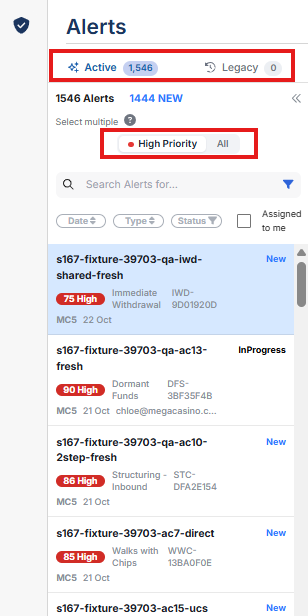
To navigate to the Alerts Work Page using the top navigation bar, you can click the Alerts link at the top of every page next to the Kinectify logo.
If your organization uses both alert versions, use the Active | Legacy toggle at the top of the list to switch between them. Each tab shows its count, and Active is selected by default. If only one version is turned on, no toggle is shown.
On the Active tab, use the High Priority | All switch. High Priority, the default, shows alerts whose Confidence Score meets the high priority threshold for their alert type. All shows every Active alert.
Accessing from the Dashboard
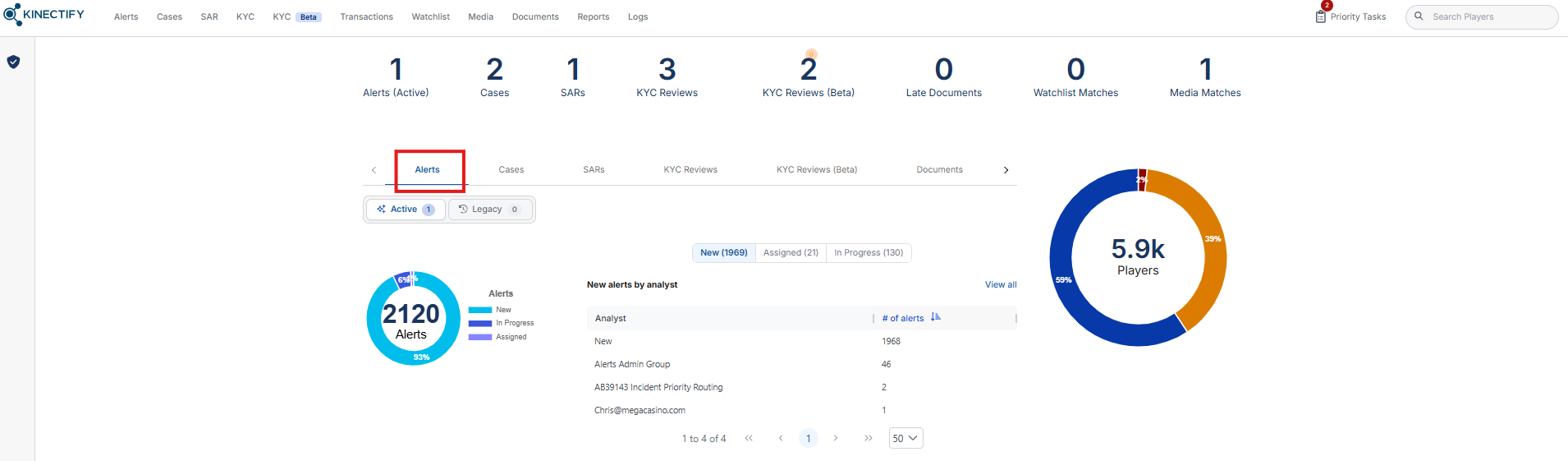
The Alerts Work Page can be accessed by selecting your assigned alerts directly from the Dashboard. This will take you to a filtered view of the Alerts Work Page, showing only the alerts that are specifically assigned to you.
Accessing from the Player Profile
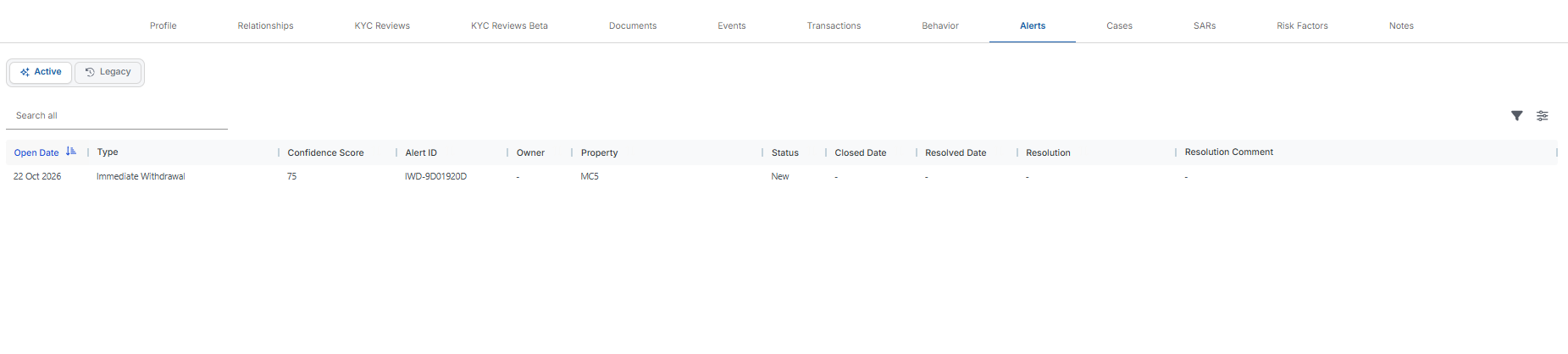
The Alerts Work Page can also be accessed by selecting an alert from the Alerts tab located in the Player Profile. This will take you directly to the Alerts Work Page, where the specific alert you clicked on will be displayed. The list of alerts will be filtered to show only those alerts of the same type as the selected alert, categorized under the statuses of New, Assigned, and In Progress.
Accessing Non-escalated Events
Activity that was detected but did not become an alert is listed under Logs → Non-Escalated Events. You need the Non-Escalated Events view permission to see it.