Prerequisites
Permissions to View/Edit Alerts Settings required
Overview
The Daily chip balance threshold in the Walks with Chips alert settings lets you exclude gaming days where the daily chip balance falls below a specified minimum. This is especially useful for operators who do not monitor chip activity under a certain value. By setting a threshold, only days with significant chip movement are included in the alert analysis and reporting, improving relevance and clarity.
Steps to Set the Daily chip balance threshold
Go to Settings > Alerts (Beta), choose the property at the top of the page, then open the Walks with Chips (WWC) card.

On the Detection criteria tab, scroll to Daily chip balance threshold.

Enter the minimum daily balance required to include a gaming day in the analysis.
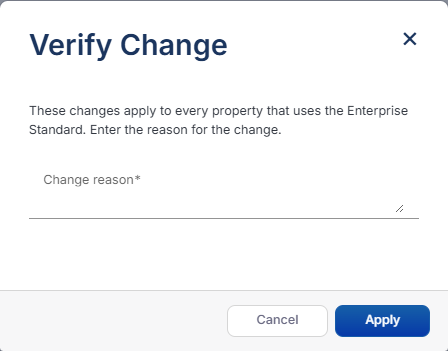
Select Save. In the Verify Change window, enter a Change reason (required for the Enterprise Standard) and select Apply.
Expected Result
When the Daily chip balance threshold is set to 0, all gaming days are included in the analysis. If you enter an amount, gaming days with a positive chip balance below that amount are left out of the analysis. Days with a negative chip balance are always included. On the alert’s Daily Walk tab, a Below $X checkbox then appears in the Risk Thresholds bar, and a dashed Lower Threshold $X line is drawn on the chart, where X is your Daily chip balance threshold. The Risk assessment tab also has an optional Alert analytic threshold (labelled Daily Walk Threshold), which is meant as an extra benchmark line on the chart when you enter a dollar value.