Prerequisites
Permissions to View/Edit Alerts Settings required
Overview
The Player Exclusion setting allows you to exclude specific players from alert generation. This is especially useful for filtering out test or unknown players who may be used during training or system testing. Excluding these players helps reduce noise and ensures that alerts are only generated for relevant activity.
Steps to Add a Player to the Exclusion Setting
Go to Settings > Alerts.
Scroll to the Player Exclusion section.
Click Add Another at the bottom of the list to open the player selection modal.

Search for the player by Name or Player ID.
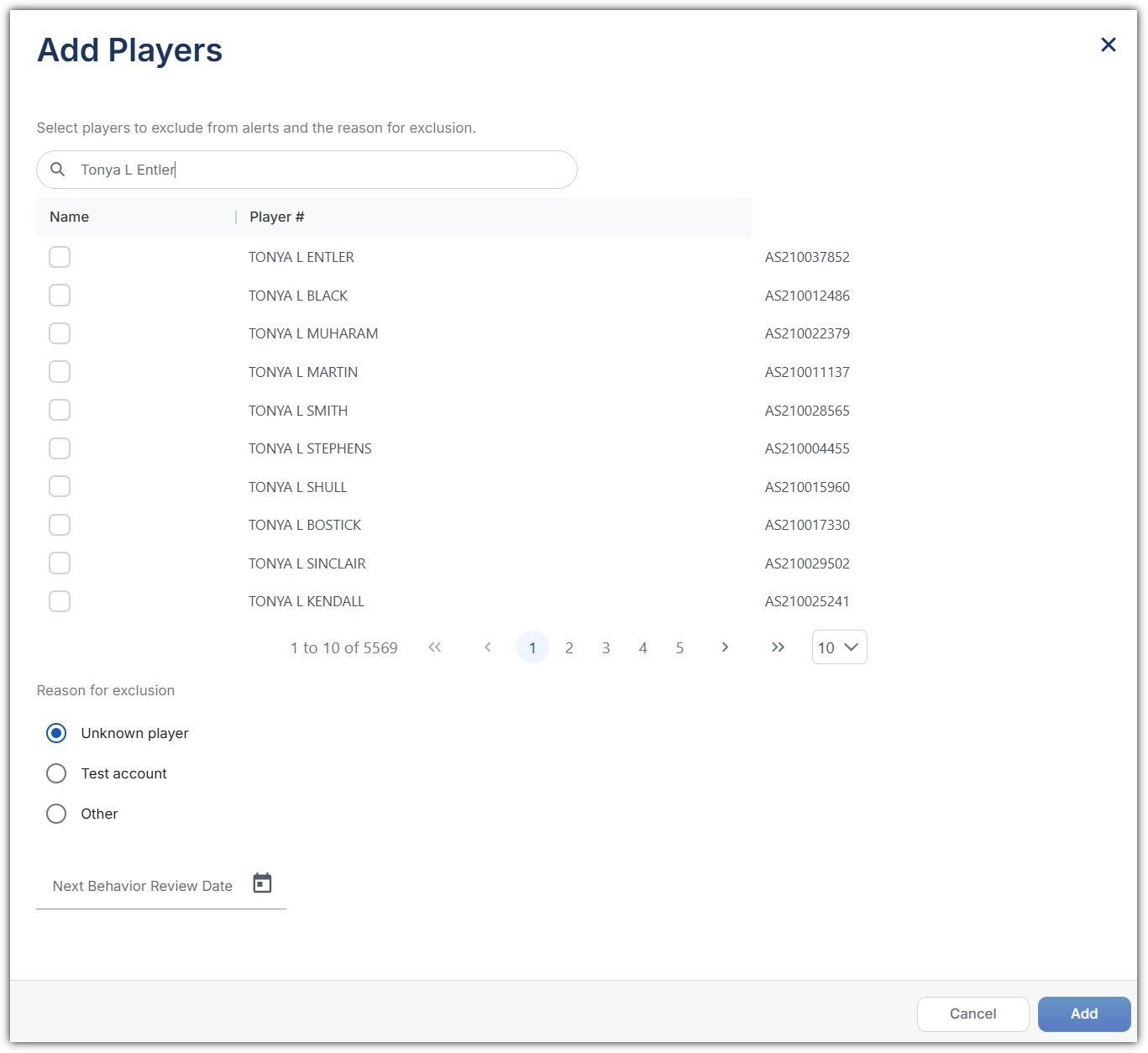
Select the player(s) to exclude.
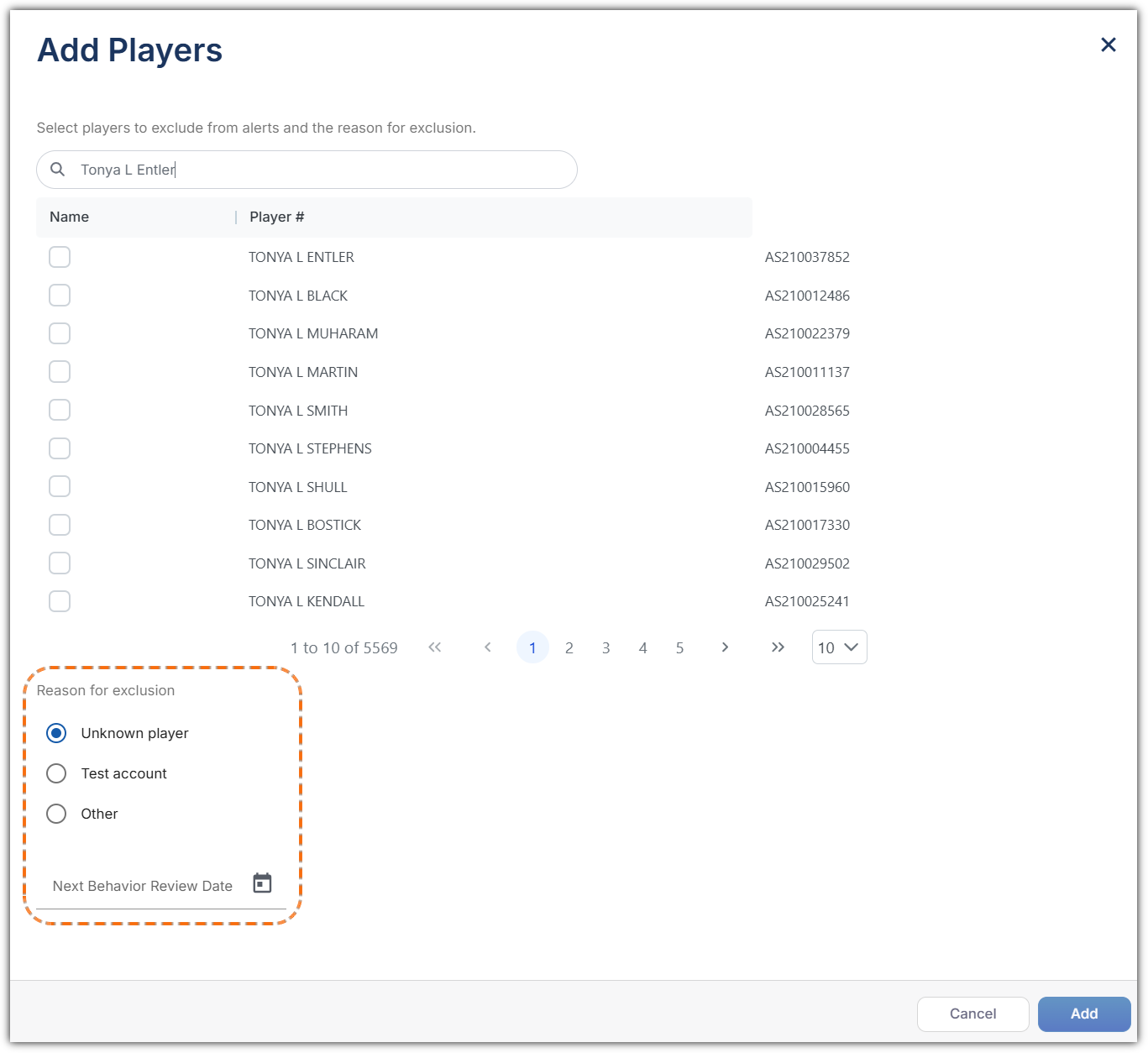
Enter a Reason for Exclusion and a Next Review Date.
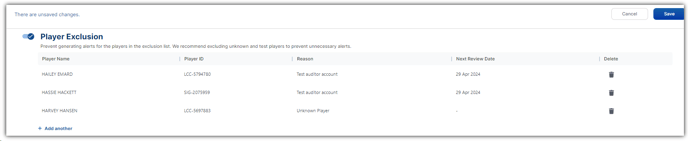
Click Save at the top of the page.
Excluded players will appear in the Player Exclusion Table. To remove a player from the list, click the Delete icon next to their name.
All changes will be recorded in the User Activity Log.
Expected Result
Once saved, the selected players will be excluded from future alert generation.
This helps reduce false positives and ensures cleaner alert data.