Prerequisites
Active alerts turned on for your organization.
To see the history on the settings page, permission to view or edit alert settings.
To see an alert's settings, permission to view alerts.
Which alert types have a history
Configuration History covers Structuring Inbound, Structuring Outbound, Minimal Play, Walks with Chips, Unknown Chip Source, Dormant Funds and Immediate Withdrawal, plus the gaming day and settlement period settings. It doesn't cover High Risk Player, Incident Reports, Custom alerts, Deep Analysis or the page-level pattern qualification setting.
Seeing how the settings have changed
Go to Settings > Alerts (marked Beta). There are three buttons, and each opens a different view:
Select Configuration History at the top of the page to open the list of alert types that have changed, described below.

Select View configuration history at the bottom of an alert type's card to skip the list and go straight to that alert type's history. The link shows even when the alert type is turned off.

Select Gaming day & settlement history at the top of the page to see changes to the gaming day start time and the settlement period.

If your organization has more than one property, the history follows the Property list at the top of the page. Choose Enterprise Standard or a property before you open any of them.
The list of alert types
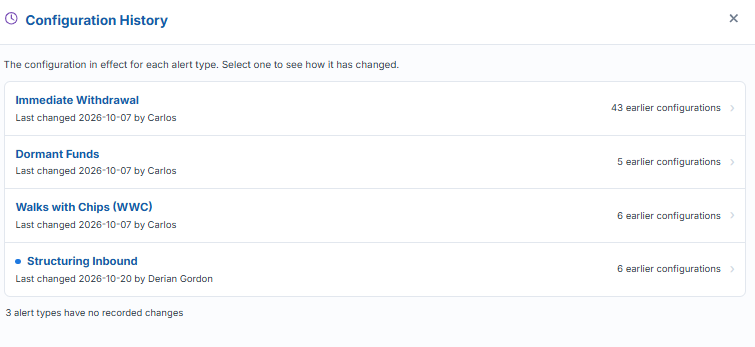
The list that opens from Configuration History shows each alert type that has changed, newest change first, with the date it last changed, who changed it and how many earlier configurations there are. A dot marks an alert type that changed in the last two weeks. Alert types that have never changed aren't listed, and a note at the bottom says how many there are. Select a row to see that alert type's history.
One alert type's history
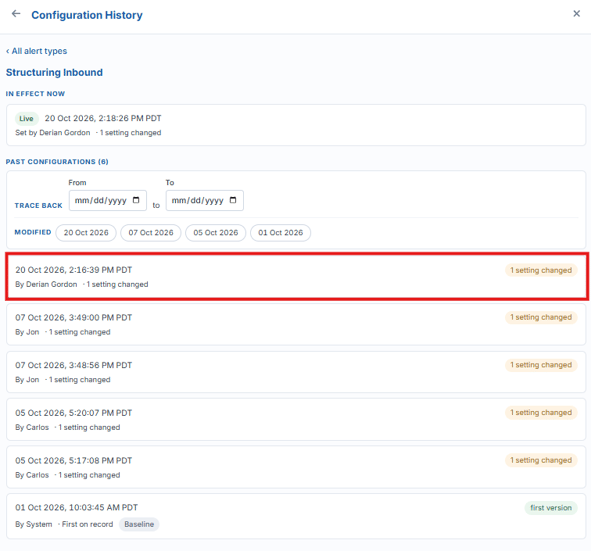
When you open an alert type's history, from the list or from its card, you see its In effect now configuration, marked Live, followed by its Past configurations, newest first. Each past configuration shows when it was saved and who saved it, along with how many settings it changed. Select one to open it.
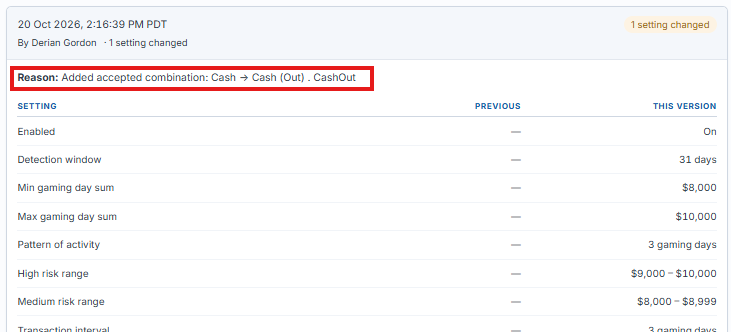
An opened configuration shows the Reason given for the change and a table with every setting that was recorded. The Previous column shows what a changed setting was before, and a dot marks each setting that changed. A setting that was added shows Not set as its previous value. This covers the settings on all four tabs, including the Confidence Score factors and weights, the Threshold score and Non-escalated retention.
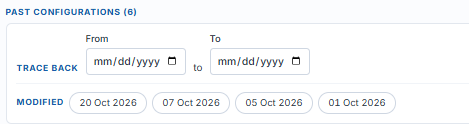
Once an alert type has two or more past configurations, a Trace back filter appears. Enter a From and To date, or select one of the Modified days listed under it, to narrow the list. Select Clear to remove the filter.
Enterprise Standard and properties
The Enterprise Standard and each property with custom settings keep their own history. When a property uses the Enterprise Standard for an alert type, the view says so and shows the Enterprise Standard's history instead. Turning on custom settings for a property is recorded as Custom settings enabled, and removing them is recorded as Back to Enterprise Standard.
Reasons for changes
Each time you save, you're asked for a Change reason. It's required for the Enterprise Standard and optional for a property. The reason is stored with the change and shown as Reason in the history. If none was given, the history shows No reason given.
What isn't in the history
History only starts from the first change made after it was introduced. For an alert type's first recorded change, the history includes a Baseline entry showing the settings as they stood before history started recording. Changes made before then aren't listed.
Seeing the settings behind an alert
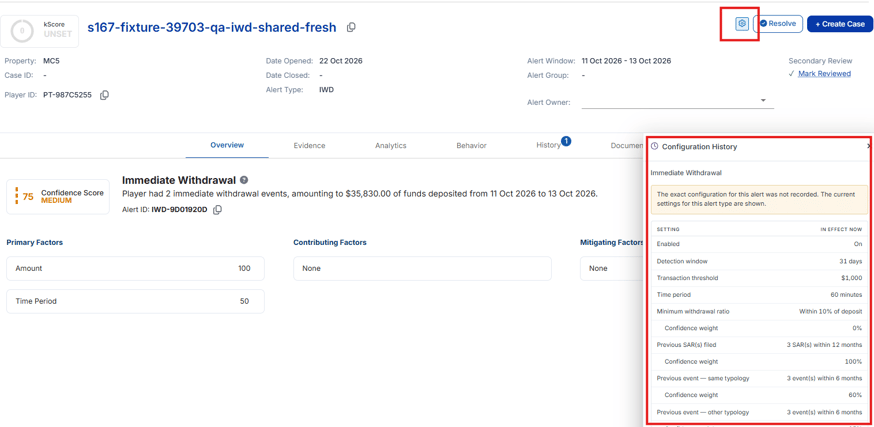
Open an alert and select the gear icon in the alert header, which shows Alert configuration when you hover over it. A Configuration History panel opens beside the alert. It's read-only. It shows the alert type, whether the settings came from the property's own settings or the Enterprise Standard, who set them and why, and a table of every setting as it was when the alert was produced. Select the gear again, or press Esc, to close it.
Related Articles
What are the detection and escalation settings for each alert type?
What is the Confidence Score on an Alert?
What is the alert threshold?
What is pattern qualification?
What is Deep Analysis?