Prerequisites
Active alerts turned on for your organization.
Permission to view alert settings to see the page, and permission to edit alert settings to change it.
Finding the settings
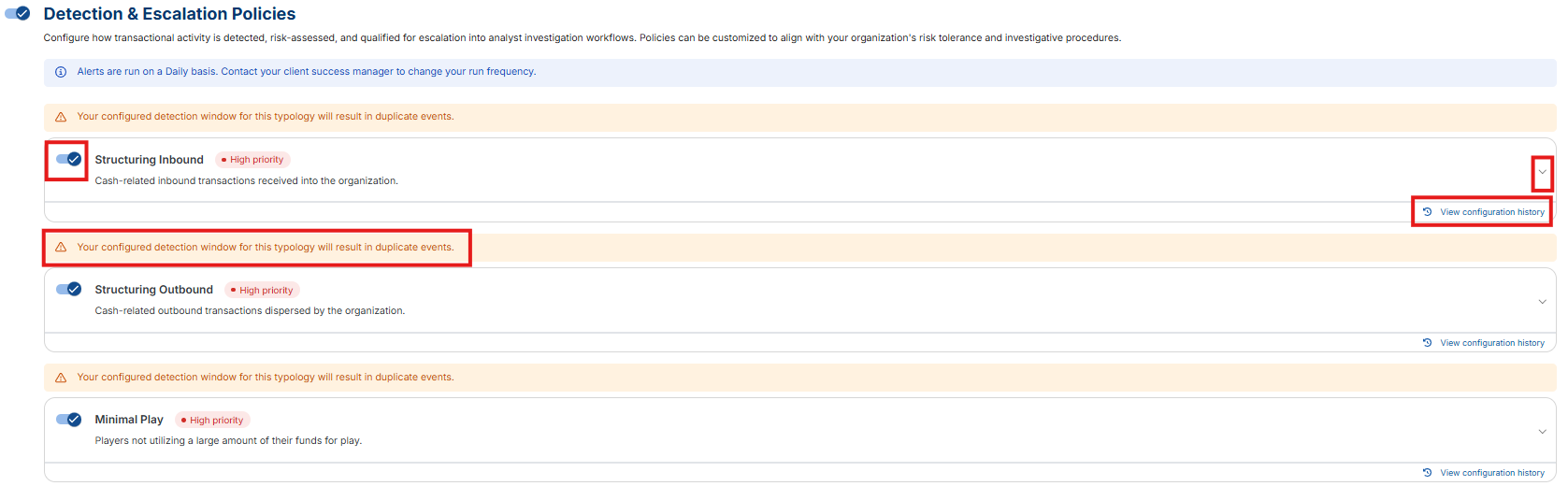
Go to Settings > Alerts (marked Beta). The Detection & Escalation Policies section lists a card for each alert type your organization has.
If your organization has more than one property, choose from the Property list at the top of the page:

Enterprise Standard — Settings that apply to every property that doesn't have custom settings.
A property — A property follows the Enterprise Standard, and its settings are read-only, until you select Enable Custom Settings. After that, changes affect only that property. Select Remove Custom Settings to have it follow the Enterprise Standard again. Both ask for a reason and take effect right away.
Alert type cards
Each card shows the alert type's name, a short description and an on/off switch. Turn an alert type on, then click its card to open its settings. A card that is turned off can't be opened. The cards for Structuring Inbound and Outbound, Minimal Play, Walks with Chips, Unknown Chip Source, Dormant Funds and Immediate Withdrawal also have a View configuration history link.
If an alert type's detection window is longer than the time between monitoring runs, a warning appears above the card: Your configured detection window for this typology will result in duplicate events.
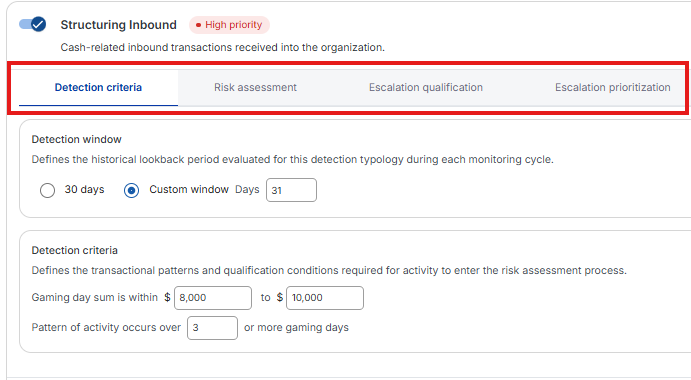
The four tabs
Each configurable alert type's settings are on four tabs.
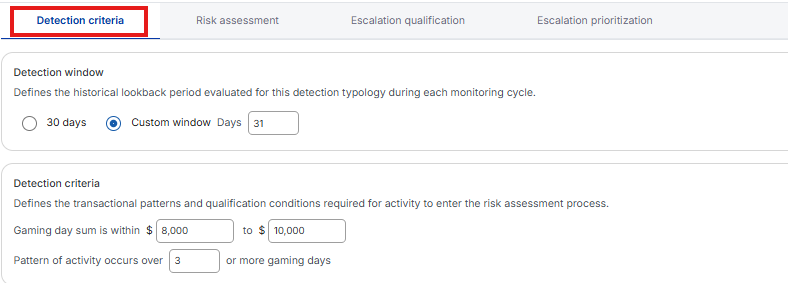
Detection criteria
Sets what activity is detected. The Detection window is how far back Kinectify looks each time monitoring runs: 30 days, or a Custom window in days. The Detection criteria are the amounts and conditions for that alert type, for example the gaming day sum range and the number of gaming days for structuring, or the volume threshold for minimal play.
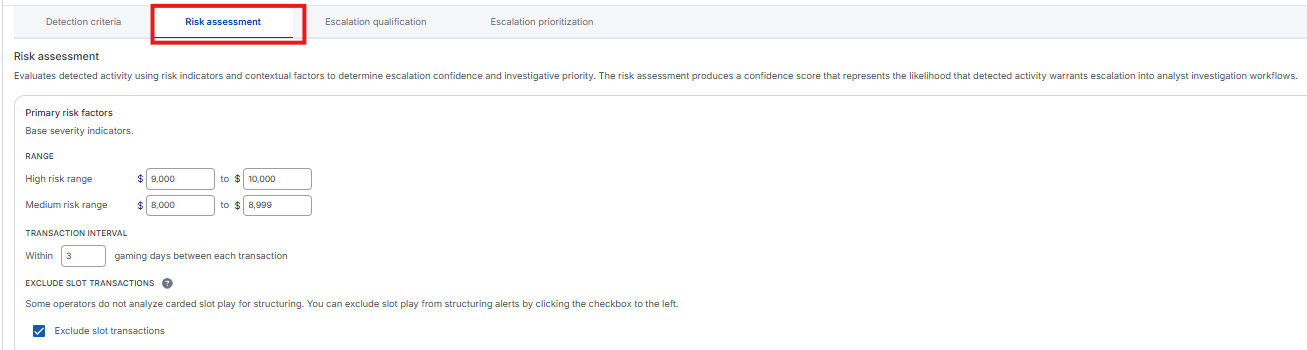
Risk assessment
Produces the event's Confidence Score from three groups of factors:
Primary risk factors — The base indicators for the alert type, such as the high and medium risk ranges for structuring.
Contributing risk factors — Indicators that raise the score, such as previous events or previous SARs. Most have a checkbox to turn them on or off and a weight to set how much they count. Some, such as Total suspicious transactions for structuring, are always on.
Mitigating risk factors — Indicators that lower the score, such as Minutes Played for minimal play. Not every alert type has them.
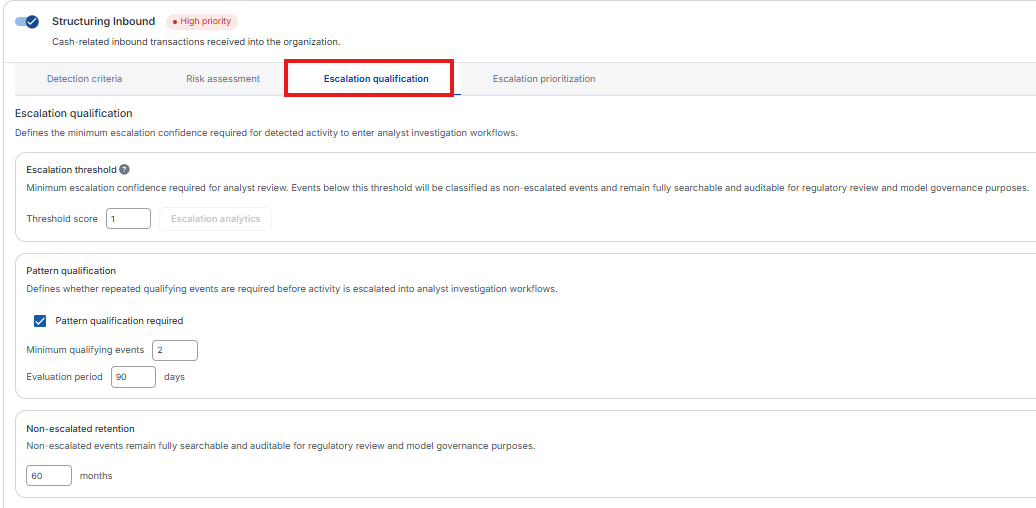
Escalation qualification
Decides which events become alerts:
Threshold score — An event needs a Confidence Score at or above this number, from 1 to 100, to be escalated. Events below it are recorded in the Non-Escalated Events log.
Pattern qualification — Require a set number of qualifying events within an evaluation period before an alert is created. The section appears only if pattern qualification is available to your organization, and it's read-only and not applied while pattern qualification is turned off.
Non-escalated retention — How many months events that weren't escalated are kept.
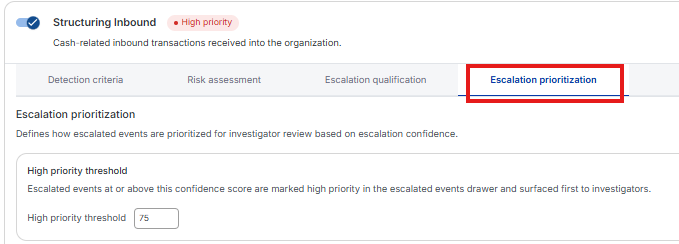
Escalation prioritization
Sets the High priority threshold. Escalated events at or above this Confidence Score are marked high priority.
Incident Reporting, High Risk Player and Custom alerts
Incident Reporting and High Risk Player only have an on/off switch. They don't have the four tabs. When Incident Reporting is on, its card also shows a QR code for submitting incidents.
Custom Alert lets you add your own alerts. Turn the Custom Alert card on and open it, select Add another, enter a Custom Alert Name, choose a Custom Alert Type and select Add. Each custom alert starts from a copy of the Structuring Outbound settings and has the four tabs.
Saving your changes
When you change a setting, the top of the page shows There are unsaved changes. Select Save, then enter a Change reason in the Verify Change window and select Apply. A reason is required when you change the Enterprise Standard and optional when you change a single property.

Setting the escalation threshold
1. Go to Settings > Alerts (marked Beta).
2. If your organization has more than one property, choose Enterprise Standard or a property with custom settings from the Property list.
3. If the alert type is turned off, turn it on. Click its card and select the Escalation qualification tab.
4. Enter a Threshold score from 1 to 100.
5. Select Save. In the Verify Change window, enter a Change reason (required for the Enterprise Standard) and select Apply.
Related Articles
What is the alert threshold?
What is pattern qualification?
What is Deep Analysis?
What happens to events below the escalation threshold?
What is the alert window?
What are primary factors for suspicious activity alerts?
What are contributing factors for suspicious activity alerts?
What are mitigating factors for suspicious activity alerts?