Prerequisites
-
Permissions to View the alerts work page required.
Overview
Alerts can be sorted using the sorting buttons below the search bar on the top left side of the alerts work page. You can also filter the alerts using the filter icon on the right side of the search bar.
On the Active tab, choose High Priority or All above the list. High Priority is selected by default. High Priority shows alerts whose Confidence Score meets their alert type's high priority threshold, and All shows every Active alert. You can select multiple alerts and use bulk actions in either view.
Each Active alert card shows its alert number after the alert type.
If your organization has both Active and Legacy alerts, the counts on the Active and Legacy tabs show the total number of alerts and do not change when you apply filters. The Alerts and NEW counts under the tabs do follow your filters.

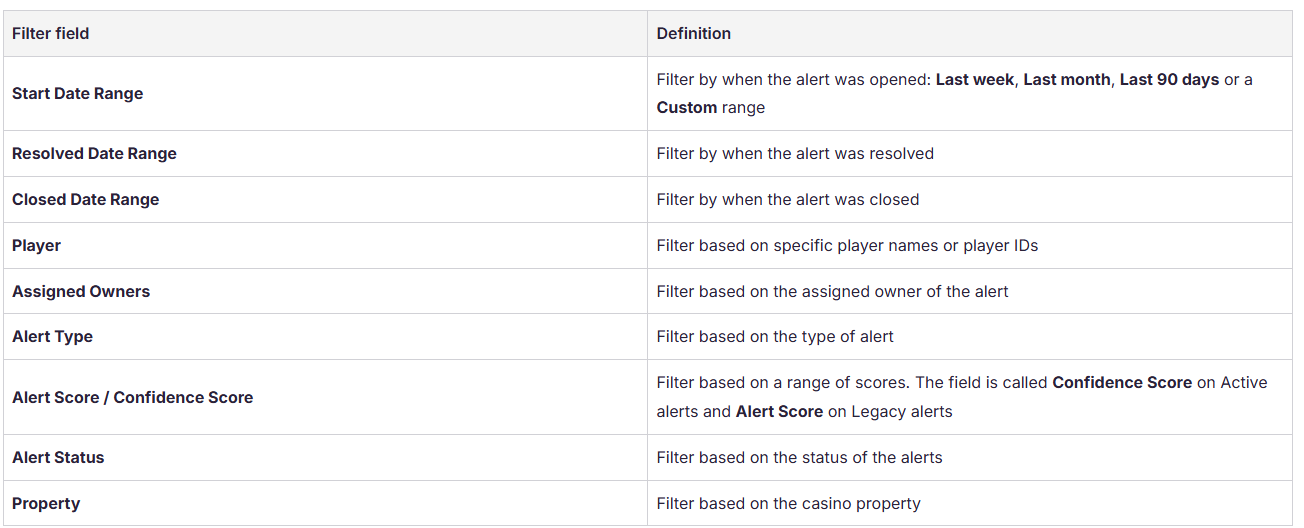
The alerts filter provides a number of filter options including the following:
Additional Tips
-
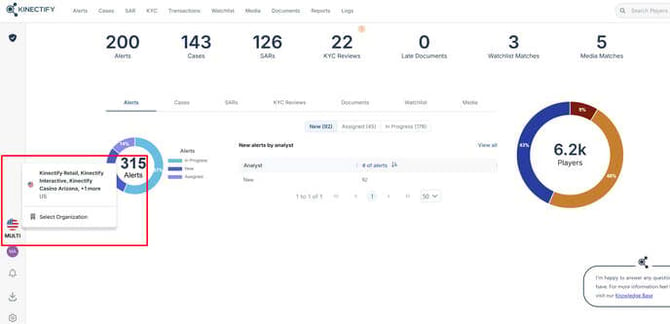
You can only view casino properties you have permissions to see. The filter on the alerts work page is also lower hierarchy than the filter for properties on your bottom left navigation. If you do not see casino properties in your alerts filter check the platform property filter in the bottom left toolbar.