Prerequisites
Permissions to view the alerts work page required.
Overview
The Alerts Work Page provides a structured layout for reviewing alerts, viewing player alert details, and accessing supporting data. This article explains how each section of the page is organized and what functionality is available in each area.
Left Panel – Alert Selection
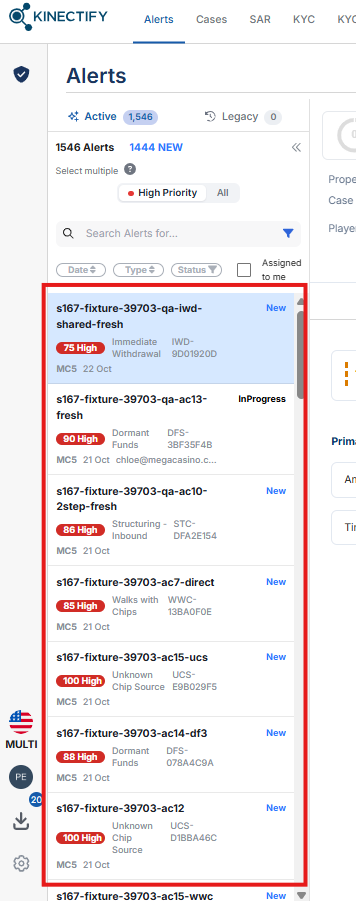
This panel lists your alerts and supports quick navigation. If your organization uses both alert versions, use the Active | Legacy toggle to switch between Active and Legacy alerts; each opens in its own work page. On the Active tab, the High Priority | All switch filters the list, and each alert card shows its alert number. You can scroll through alerts, apply filters, and sort by criteria like date, or type of alert. Once you select an alert, its details appear in the main panel.
Top Banner – Player and Alert Summary
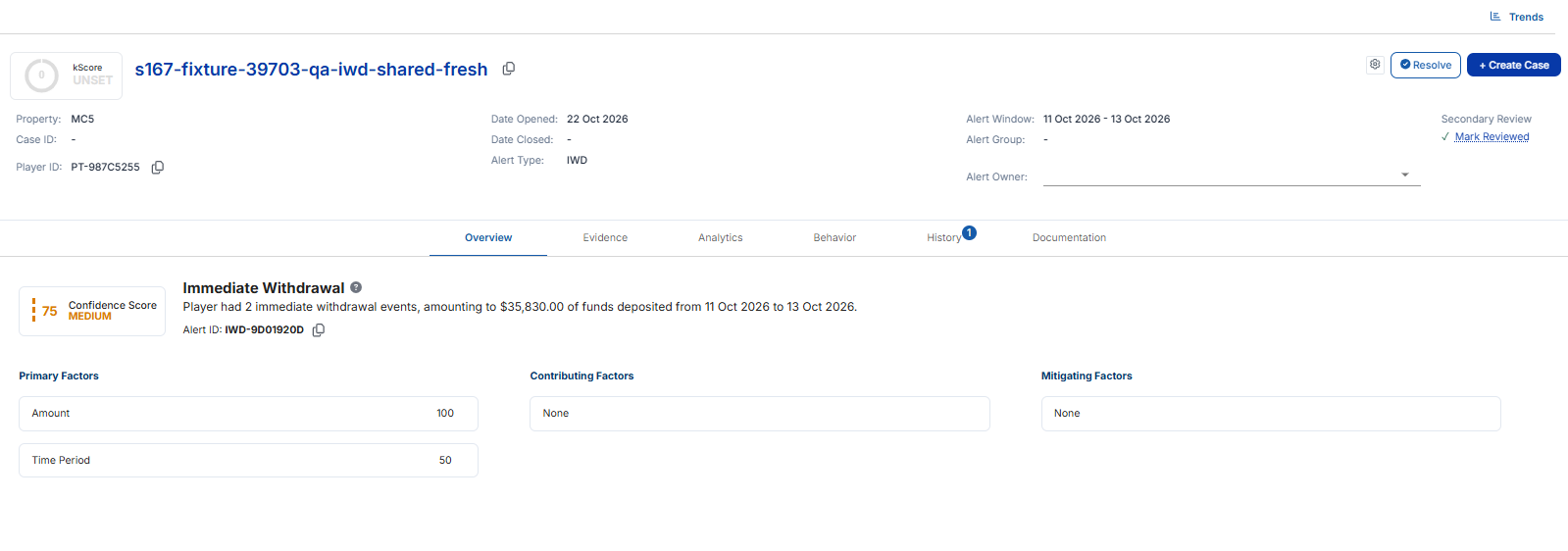
The top of the page summarizes the selected alert and the associated player. It includes:
Player name (linked to their profile) and Player risk score
Property, Case ID, and Player ID
Alert open date, Close date, and Alert type
Alert Window (the period of activity the alert covers)
Assigned group and owner
To the right, you’ll find action buttons to resolve the alert, create a case, or mark it as reviewed. The gear button to the left of Resolve opens Configuration History, a read-only copy of the alert settings that were in place when this alert was produced. Above the top banner is a link to alert Trends which provides analytics across alerts over a selected time period.
Alert Details Panel – Alert Content and Tabs
This central area displays detailed information about the selected alert. It’s organized into several tabs, each designed to support a specific aspect of alert investigation:
Overview – Summarizes the alert, shows its Confidence Score, and highlights the primary, contributing, and mitigating factors that influenced it.
Evidence – Displays the transactions that triggered the alert’s generation.
Analytics – Offers visualizations and metrics to support quick, informed decision-making.
Behavior – Shows the player’s lifetime transactions aggregated by month.
History – Lists prior alerts and SARs associated with the player.
Documentation – Lets users add notes and upload or view supporting documents for the alert.

Each tab has its own dedicated knowledge base article that explains the data and functionality it provides in more detail.