Prerequisites
Permissions to View/Edit Alerts Settings required
Overview
The structuring outbound alert is designed to detect players who attempt to avoid reporting thresholds by spreading transactions over time. You configure the alert by setting thresholds, the number of occurrences, and defining primary, contributing, and mitigating factors. This allows the system to mimic analyst behavior in identifying suspicious patterns and scoring alerts accordingly.
For Active Alerts
If Active alerts are turned on for your organization, the structuring outbound alert is set up in Settings > Alerts (Beta). Choose the property at the top of the page, then open the Structuring Outbound card. The card has four tabs:

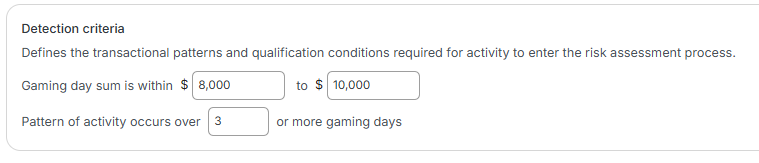
Detection criteria – The Detection window (the standard number of days, or a Custom window), the range the gaming day sum must fall within, and how many gaming days the Pattern of activity must occur over. Activity that meets these is recorded as an event.
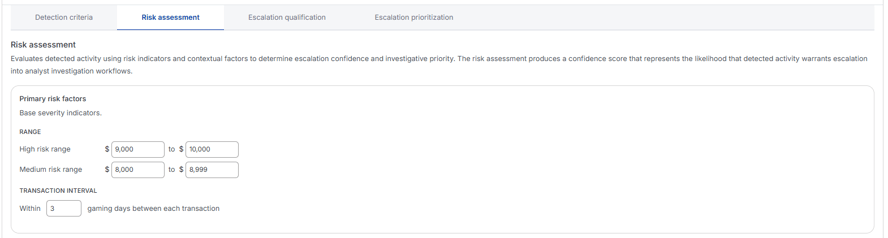
Risk assessment – The Primary risk factors (the high and medium risk ranges and the Transaction interval), plus the Contributing risk factors and Mitigating risk factors, each with a weight. Together they produce the event's Confidence Score.
Escalation qualification – The Threshold score an event's Confidence Score must reach to become an alert. If pattern qualification is available for your property, you can also require a Minimum qualifying events count within an Evaluation period before an alert is produced.
Escalation prioritization – The High priority threshold. Alerts at or above this Confidence Score are marked High Priority.
Steps to Configure Structuring Outbound Alert
Access the Alert Settings Page
Click the gear icon in the bottom-left navigation bar.
Select the AML module, then click Alerts (Beta) in the left-hand menu.
Choose the property at the top of the page, then open the Structuring Outbound card.

Set the Detection Window
The detection window defines how far back the system looks for transactions each time alerts are run.
A common setting is 30 days, meaning the system analyzes the past 30 days of activity.
Ensure the alert window is equal to or longer than the frequency of alert runs (e.g., if alerts run every 14 days, the window should be at least 14 days).
A shorter window may result in gaps in transaction analysis, potentially missing structuring behavior.

Configure the Detection Criteria
Gaming Day Sum: Define the daily transaction amount range that may indicate structuring (e.g., $8,000–$10,000). Only days within this range are considered.
Pattern of Activity: Set how many qualifying days within the alert window are needed to establish a pattern. A single occurrence typically does not trigger an alert.
For more information on alert thresholds see knowledgebase article alert threshold.
Define Primary Risk Factors
These set the base Confidence Score for activity that meets the detection criteria.
Range: Set the High risk range and Medium risk range. Days in the high risk range get a higher base score than days in the medium risk range.
Transaction Interval: Define how close in time transactions must be to indicate structuring. For example, if transactions are more than 3–4 days apart, they may not be considered part of a structuring pattern.
Set the Contributing Risk Factors
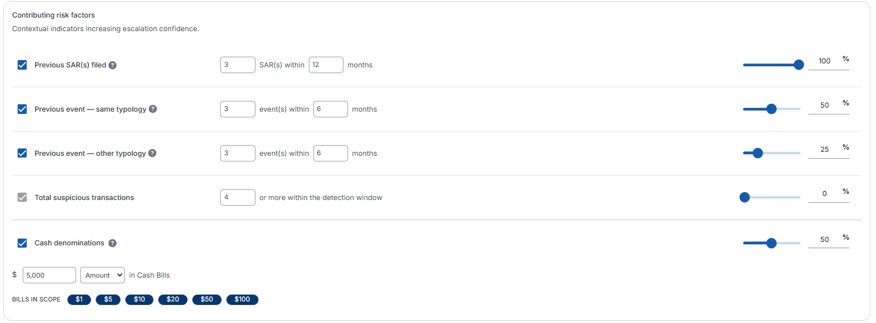
Contributing risk factors increase the Confidence Score. On Active alerts, a higher score can decide whether an event is escalated to an alert.
These factors help validate suspicious activity. If a factor doesn’t add confidence, clear the checkbox to the left of the factor to turn it off.
If no contributing risk factors are turned on, the Confidence Score is based solely on the primary and mitigating risk factors that are turned on.
Set the Mitigating Risk Factors
Mitigating risk factors decrease the Confidence Score. On Active alerts, a lower score can keep an event below the escalation threshold, so it is not escalated to an alert.
These factors reduce confidence in suspicious activity. Clear the checkbox for any that don’t apply to your risk model.
If none are turned on, the Confidence Score reflects only the primary and contributing risk factors that are turned on.
For this example: The Days over threshold mitigating factor evaluates whether there is at least one day within a one-month period where total transactions meet or exceed $10,000. The mitigation assessment window starts one month before the alert window and includes the entire alert window period.

For more information on how contributing factors influence the Confidence Score, see the knowledge base article How is the alert score calculated.
On Active alerts, this alert type can include the Cash - Denominations contributing factor. It looks for cash transactions in the bill denominations set in your alert settings. For details, see the contributing factors article.
Expected Result
Once configured, the system will generate alerts when transactions meet the defined thresholds and patterns. The alert score will reflect the influence of primary, contributing, and mitigating factors. If no transactions meet the criteria, no alert will be produced.
Frequently Asked Questions
Can I use the same thresholds for all properties or player segments?
No. Thresholds should be tailored based on player behavior, property risk profile, and regulatory expectations. A one-size-fits-all approach may lead to false positives or missed alerts.
What happens if I disable all contributing and mitigating factors?
The alert will still be generated if the threshold and primary factors are met. The alert score will be based solely on the primary factors.
Are alerts retroactive if I change the configuration?
No. Changes to alert settings only apply to newly generated alerts. Historical alerts are not recalculated.
How do I know if my alert settings are too strict or too lenient?
Monitor alert volume and review alert quality. If too many alerts are generated or too few are meaningful, consider adjusting thresholds or factor weights to better align with your risk tolerance.