Prerequisites
-
Permissions to View the alerts work page required.
Overview
The Persistent Filter helps reduce repetitive filtering by saving your preferred filter and column settings. Once saved, these preferences remain active even if you navigate away from the page or log out of Kinectify.
Using the Persistent Filter
When you open the Advanced Filter with the filter icon next to the search bar, you can set and save preferences for:
-
Assigned Owners
-
Alert Type
-
Confidence Score
-
Alert Status
-
Property
After clicking Save, a confirmation message will appear, and the Advanced Filter icon will turn blue, indicating that a persistent filter is active.
On Active alerts, each filter choice applies to the list right away and is saved as your preference; select Save to close the panel with the confirmation. Active and Legacy alerts keep separate saved filters.

These settings are saved per user and persist across sessions. To clear any active or persistent filters, click the Reset button in the Advanced Filter.
Default Behavior
By default, when you first access the Alert Workpage, filters are automatically applied to show alerts with statuses of New, Assigned, and In Progress.
Dashboard Behavior
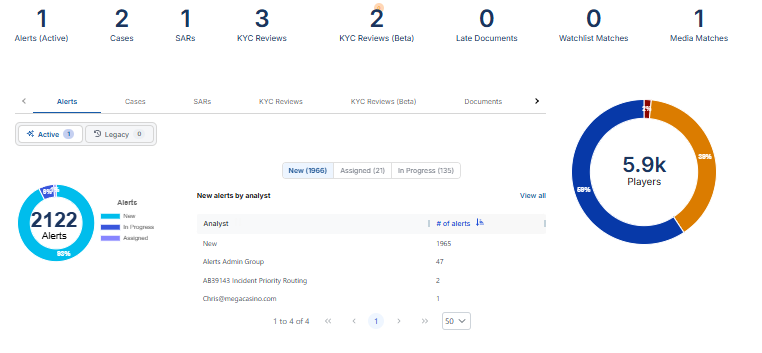
If you open the Alert Workpage from the Dashboard, the Dashboard's selection overrides your persistent filter. For example, on the Dashboard's Alerts tab, choose New, Assigned or In Progress, then click an analyst or group in the table. The alerts work page opens showing that analyst's or group's alerts with that status.