Prerequisites
Permissions to View, Edit, Mass Assign, Mass Reopen, Mass ResolveAlerts required
Overview
You can access bulk actions Resolve, Reopen, Assign Owner, or Create Case on multiple alerts from the Alerts Work Page when multiple alerts are selected at a time. This helps streamline alert management and reduce manual effort. Multiple alerts can be selected using either CTRL + Click to choose individual alerts, or Shift + Click to select a range of alerts between two selections. For mass case creation, all selected alerts must belong to the same player.
Steps to Manage Multiple Alerts
Go to the Alerts Work Page.
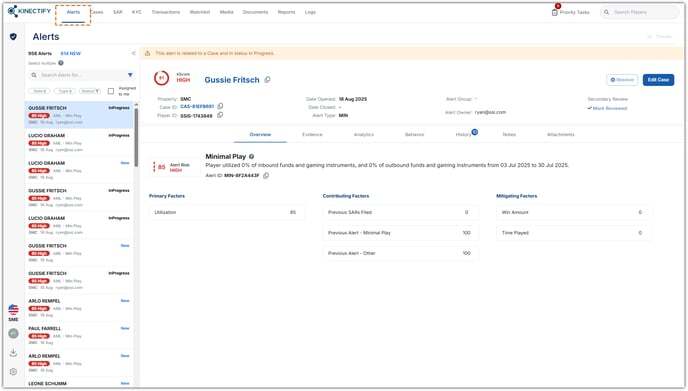
Select multiple alerts using one of the following methods:
Hold CTRL and click each alert individually.
Click one alert, then hold Shift and click another to select all alerts in between.
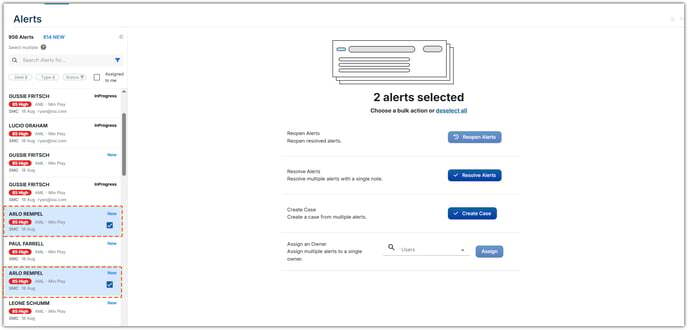
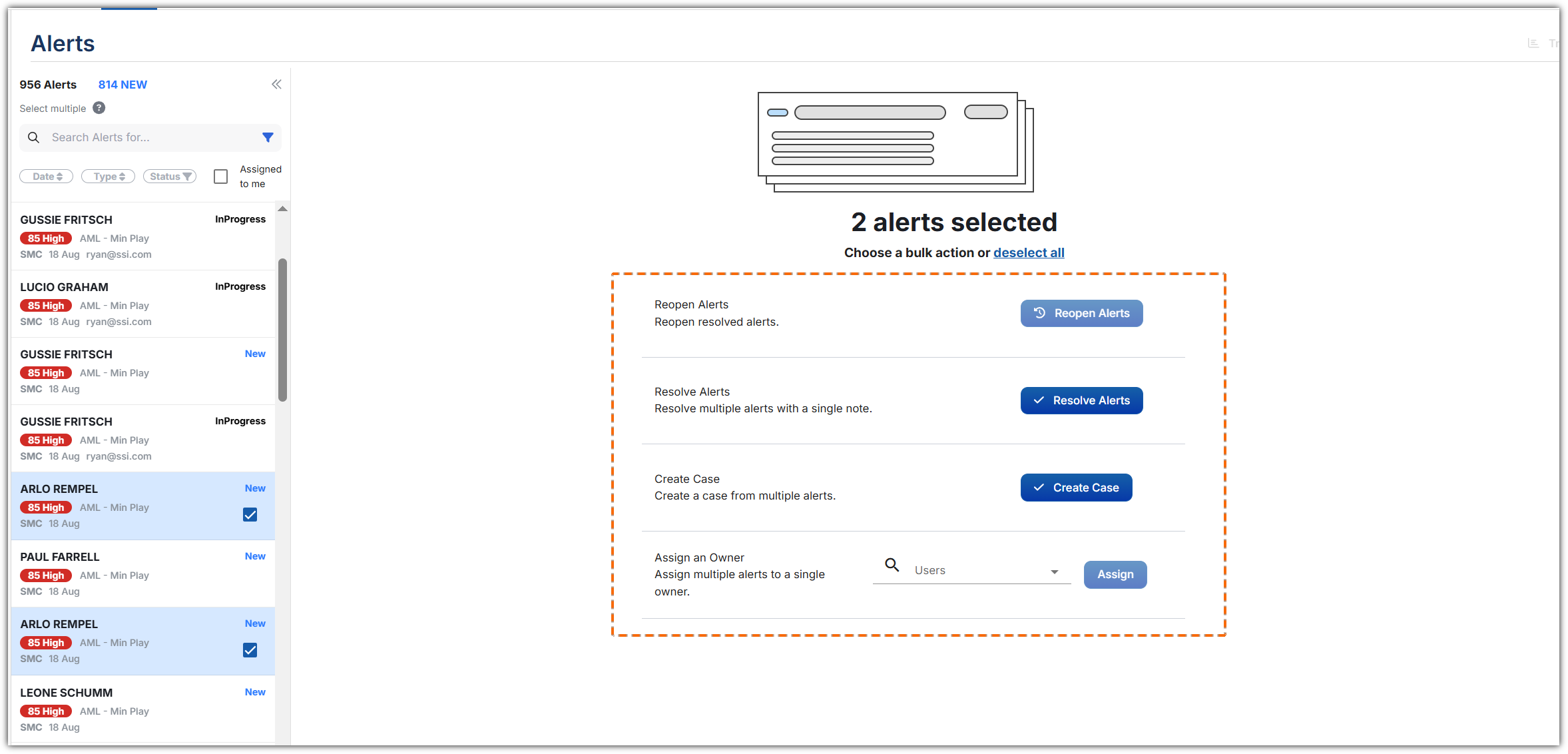
Choose one of the following actions from the toolbar:
Reopen: Reopen Closed or Resolved alerts to make changes or add information. A green banner confirms success.
Resolve: Apply a single resolve reason and note to all selected alerts.
Create Case: Generate a case that includes all selected alerts, along with related player and transaction details. These appear in the Associated Alerts section of the case.
Assign Owner: Assign selected alerts to another user in bulk. Only available to managers or users with assignment permissions.
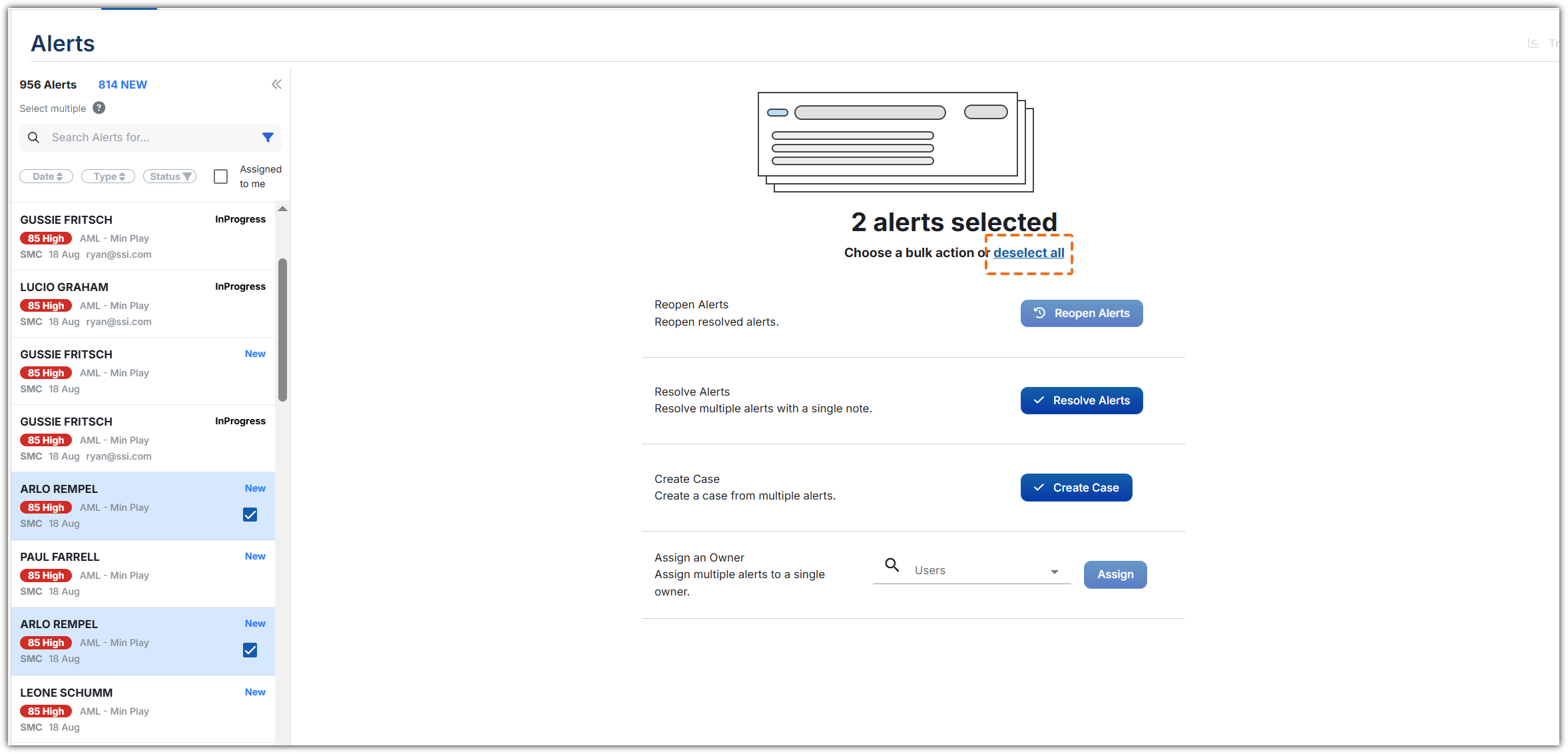
To clear all selected alerts, click the Deselect All button.
Expected Result
All selected alerts are updated based on the chosen action. If a case is created, it will automatically include all selected alerts and transactional data into the case that is generated. Any duplicated transactions across the selected alerts will appear as a single transaction within the case to avoid inflating the total amount.