Prerequisites
Permissions to View/Edit Alerts Settings required
Permissions to View the Alerts Work Page required
Overview
Enterprise Behavior Notices are threshold-based rules that monitor player activity across all properties in Kinectify. These notices are triggered when a player’s activity exceeds a defined dollar threshold, optionally factoring in a percentage increase over their lifetime average. You can configure rules by selecting an instrument type (e.g., ACH, Cash, Check), direction of activity (inflow or outflow), threshold amount, time window, and percent increase. Behavior Notices appear on the Alerts Work Page and follow the same workflow as AML alerts, including case escalation, SAR filing, and alert logging.
Steps to Enable Enterprise Behavior Notices
Navigate to the Behavior Notice Settings Page
Go to Settings > AML > Behavior Notice on the left-hand menu. This is where you manage all enterprise-level Behavior Notice rules.Turn on Enterprise Behavior Notice
Use the toggle switch at the top of the page to turn on enterprise Behavior Notices. This enables monitoring for all players in your environment.
Click Add New button to create a rule.

Configure the Alert Rule
In the modal, fill out the following fields: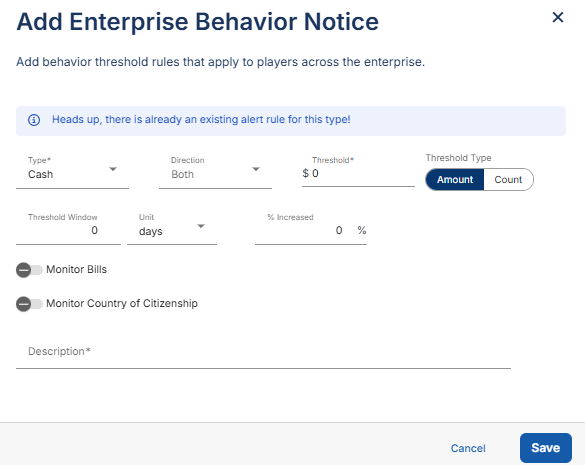
Type: Choose the financial instrument to monitor, such as Cash, ACH or Check. Required. If a rule already exists for that type, a message says so.
Direction: Choose In, Out or Both.
Threshold: Enter the value that triggers the notice. Required. It is a dollar amount, or a number of transactions when Threshold Type is Count.
Threshold Type: Choose Amount or Count.
Threshold Window and Unit: Enter the period the threshold is evaluated over, and choose days or months. Leave it at 0 to evaluate over the player's lifetime.
% Increased: (optional) A percentage increase over the player's lifetime average. If you set it, both the threshold and the percentage increase must be exceeded.
Monitor Bills: For Cash, turn on to watch for specific bill denominations, then select them. A warning appears if you monitor bills on outgoing cash.
Monitor Country of Citizenship: Turn on to watch players with specific countries of citizenship, then select the countries.
Threshold Type, Monitor Bills and Monitor Country of Citizenship appear only when Active alerts are turned on for your organization.
Add a Description for the Rule. Use the Description field to document the purpose or rationale for the alert rule.
Save the rule.
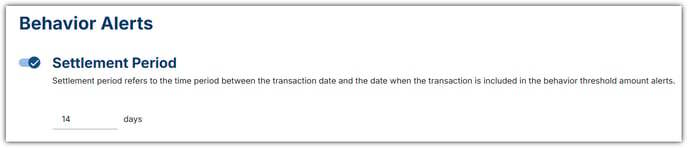
Set the Settlement Period (e.g., 10–14 days).
Understand How Percent Increase Works
The percent increase is calculated against the player’s lifetime average activity. This approach accounts for seasonal or irregular play patterns and provides a more stable baseline for detecting significant changes.
Expected Result
Once a player’s activity meets the defined criteria, a Behavior Notice is created and displayed on the Alerts Work Page. These notices are labeled as Behavior Notices and follow the same escalation and logging process as AML alerts.
Additional Tips
Player-Specific Overrides: You can override enterprise rules by setting custom Behavior Notice rules for individual players. Go to the Player Profile > Behavior Tab > Behavior Rules Sub-tab to configure these. Player Behavior Notice must be turned on.
Alert Cadence: Behavior Notices are processed on the same schedule as AML alerts.
Cross-Property Monitoring: Kinectify currently evaluates Behavior Notices across all properties. It does not support property-specific alerting at this time.